







comprar clave de activación
https://youtu.be/8PEWlzSzze0
Windows 11 ha madurado mucho desde su lanzamiento inicial en 2021. La actualización 24H2, que comenzó a llegar a todos los equipos a finales de 2024, incorpora soporte para fondos HDR, Wi‑Fi 7, audio Bluetooth LE, un buscador que utiliza frases descriptivas para encontrar documentos o fotos y funciones exclusivas como Windows Recall y Auto Super Resolution. Estas novedades convierten a Windows 11 en un sistema moderno y productivo, y conviene recordar que la compatibilidad de Windows 10 terminará pronto, por lo que migrar a Windows 11 es una inversión de futuro.
En esta guía actualizada explicaremos cómo instalar Windows 11 Pro en cualquier tipo de equipo: desde un PC moderno que cumple los requisitos, pasando por ordenadores antiguos o sin TPM, hasta máquinas virtuales o MacBook. También veremos cómo crear medios de instalación, cómo actualizar desde Windows 10 y cómo saltarse los requisitos de TPM o Secure Boot de forma segura. La guía se basa en los requisitos oficiales de Microsoft y en los métodos de la comunidad para instalar Windows 11 en hardware no compatible. Al final encontrarás una sección de preguntas frecuentes que responde a las dudas más buscadas, según los datos de Ahrefs.
Requisitos mínimos y recomendados
Antes de empezar, comprueba que tu equipo cumple (o puede saltarse) los requisitos básicos. A partir de la versión 24H2, Windows 11 exige un procesador x86‑64‑v2 con soporte para las instrucciones SSE4.2 y POPCNT. En los sistemas IoT Enterprise se elimina la necesidad de TPM y UEFI, pero el resto de ediciones siguen pidiendo TPM 2.0, arranque seguro y 4 GB de RAM. La siguiente tabla resume los requisitos mínimos y los recomendados para una experiencia fluida:
| Componente | Requisitos mínimos | Recomendado |
|---|---|---|
| CPU | 1 GHz, 2 núcleos, 64 bits (x86‑64‑v2, SSE4.2) | Procesador de 4 núcleos a 2 GHz o superior |
| Memoria | 4 GB de RAM | 8 GB o más para multitarea |
| Almacenamiento | 64 GB de espacio disponible | SSD de 128 GB o más |
| Firmware | UEFI con Secure Boot y TPM 2.0 | UEFI actualizado y TPM 2.0 habilitado |
| Gráficos | Compatible con DirectX 12 | GPU moderna con soporte HDR |
| Pantalla | 9 pulgadas a 720p | 1080p o superior |
¿Tu PC no cumple los requisitos? No te preocupes: más adelante explicamos cómo crear un instalador personalizado que omite la comprobación de TPM, Secure Boot y RAM. Microsoft advierte que saltarse estos requisitos puede reducir la estabilidad y la seguridad y que algunos equipos podrían no recibir todas las actualizaciones
Método 1 – Actualizar desde Windows 10
La forma más sencilla de pasar a Windows 11 Pro es mediante Windows Update. Esta opción solo está disponible si tu equipo cumple los requisitos y ya utiliza Windows 10 versión 21H1 o posterior. Para comprobar la compatibilidad y actualizar:
Abre Configuración → Actualización y seguridad → Windows Update y pulsa en Buscar actualizaciones.
Si tu PC cumple los requisitos mínimos, verás el mensaje “Este equipo puede ejecutar Windows 11”. Haz clic en Descargar e instalar.
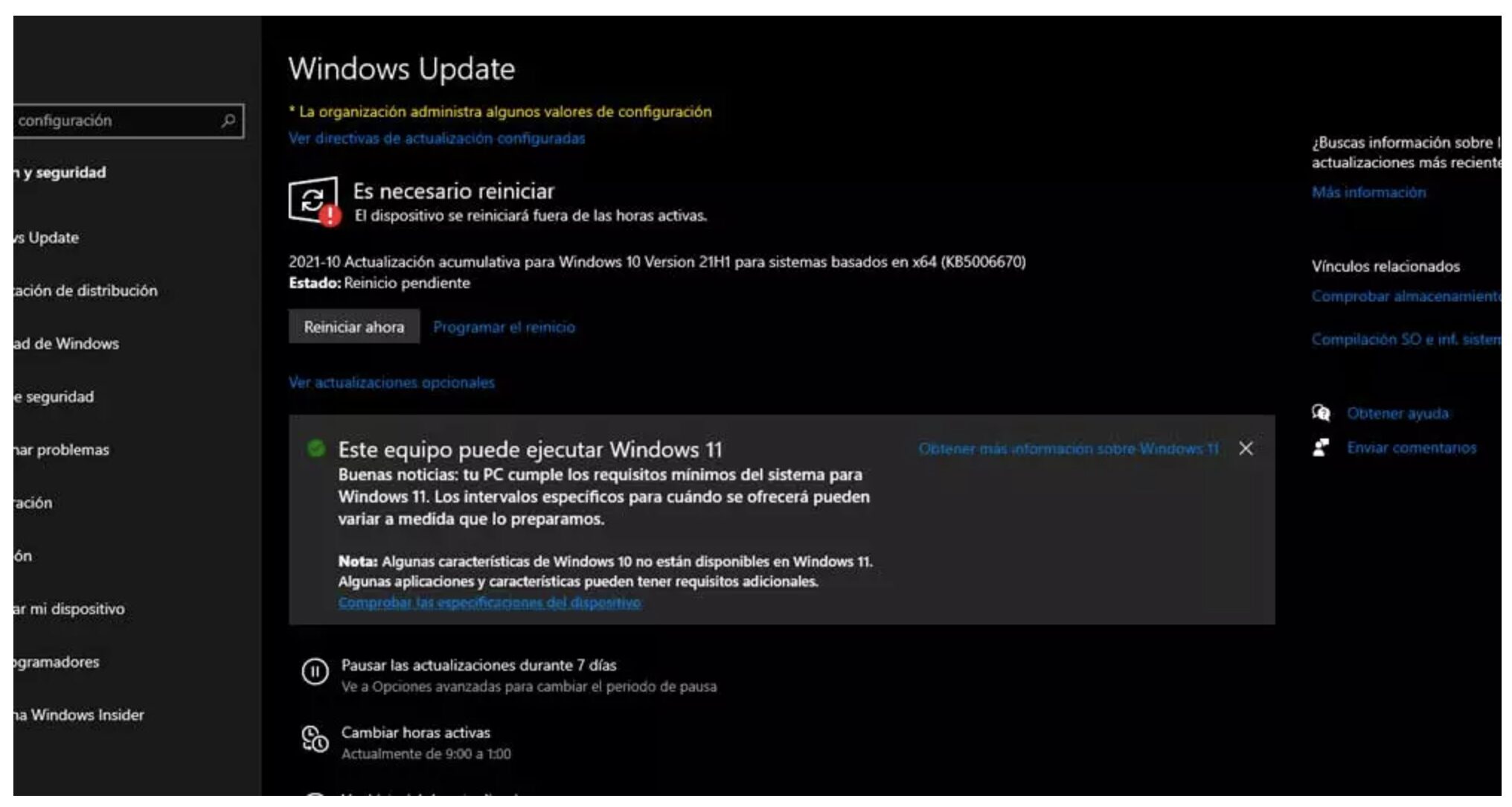
Sigue las instrucciones en pantalla. El proceso de actualización conservará tus archivos y programas.
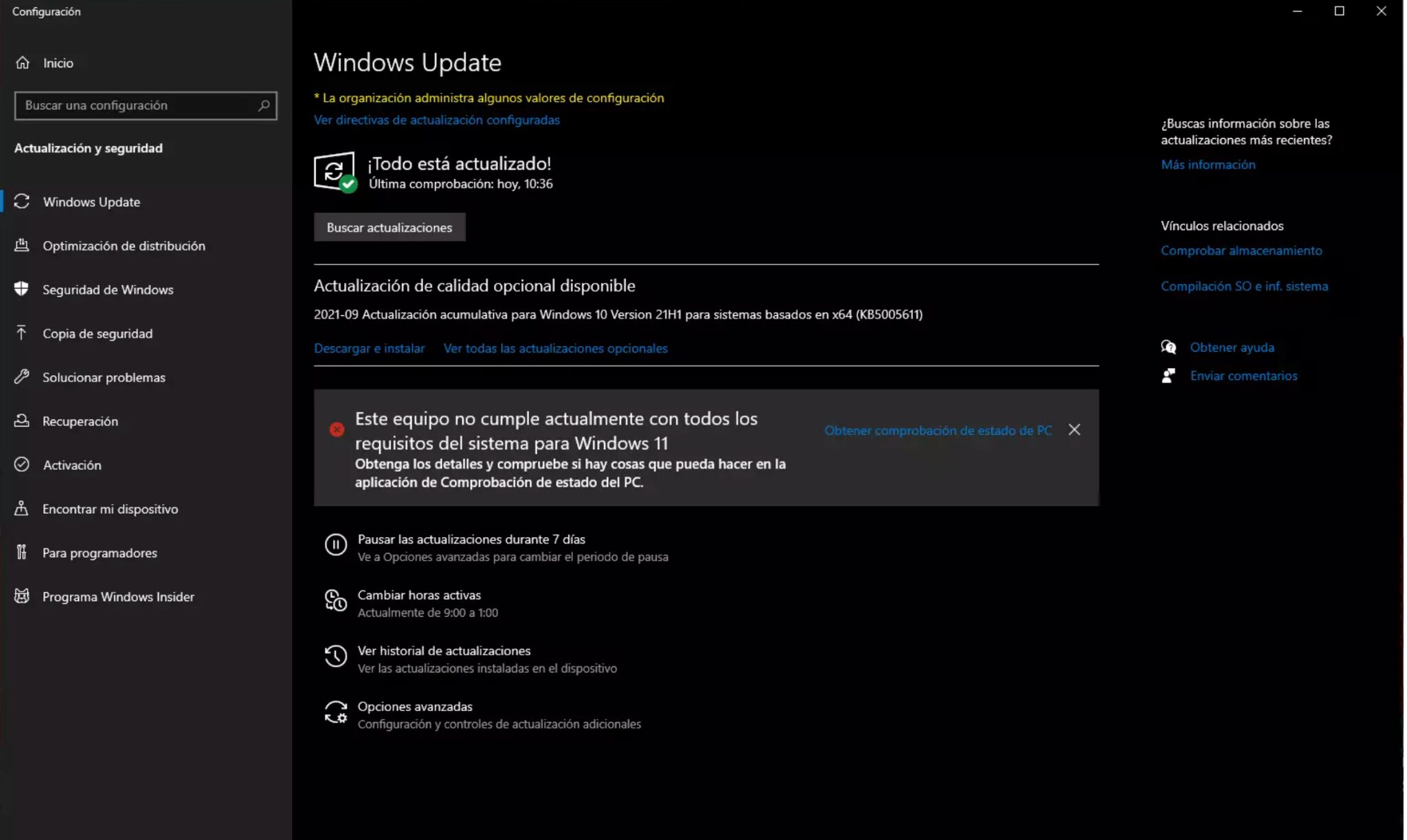
Si aparece el mensaje “Este equipo no cumple actualmente con todos los requisitos del sistema para Windows 11”, puedes optar por instalar Windows 11 mediante un medio de instalación y un truco en el registro (ver Métodos 2 y 3).
Actualizar desde Windows 7 u 8.1
Windows 7 y Windows 8.1 no pueden actualizarse directamente a Windows 11. Debes realizar una instalación limpia desde un USB (Método 2) o actualizar primero a Windows 10 y, desde allí, ejecutar la actualización. Recuerda realizar una copia de seguridad de tus archivos antes de comenzar.
Método 2 – Instalación limpia desde un USB o ISO
Si quieres realizar una instalación desde cero —ya sea en un equipo nuevo, uno con FreeDOS o un ordenador sin sistema operativo— sigue estos pasos para crear un medio de instalación oficial:
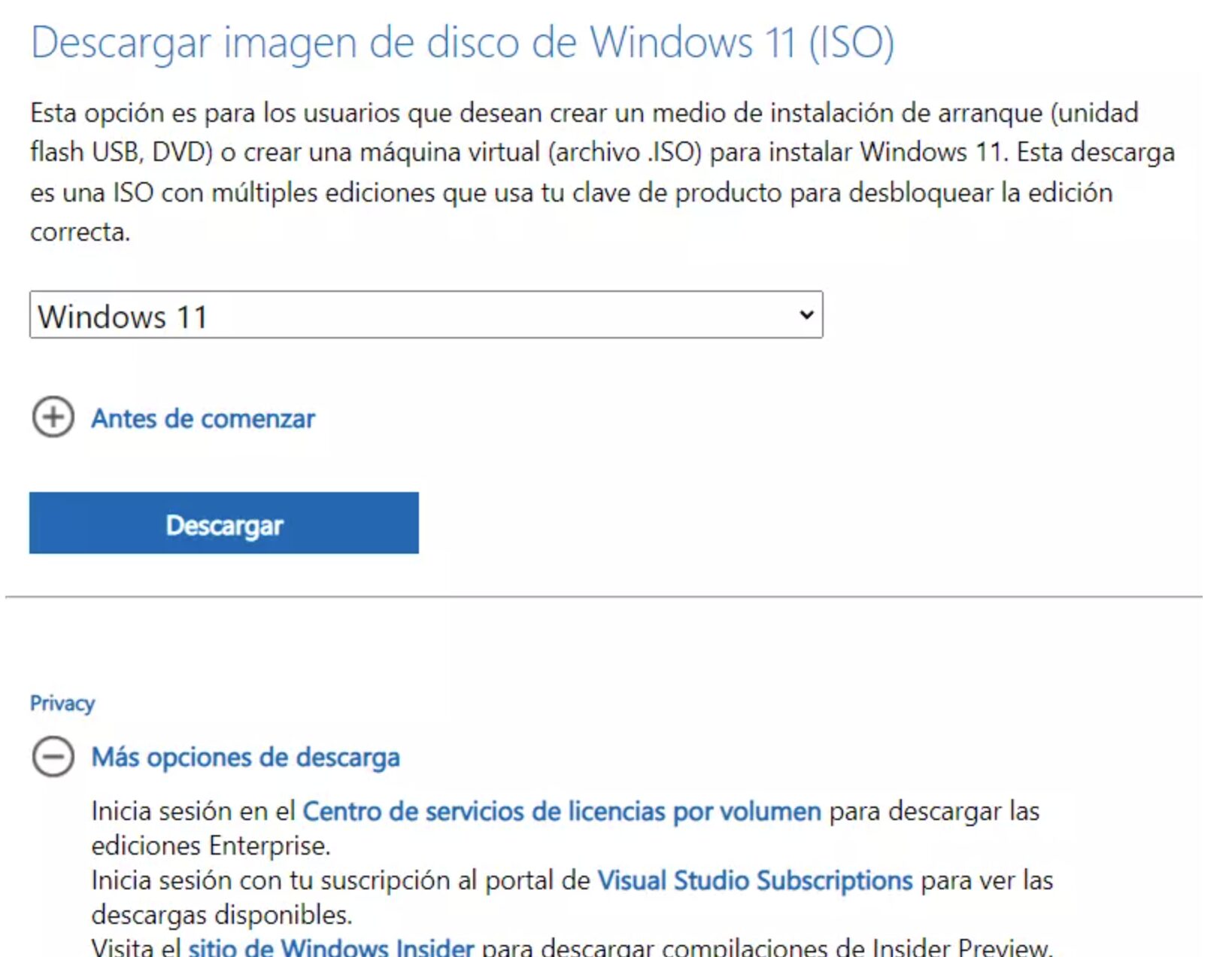
- Descargar la ISO oficial: visita el sitio de Microsoft para descargar la imagen de disco de Windows 11. Selecciona Windows 11 en el menú desplegable y pulsa Descargar. Esta ISO incluye todas las ediciones; la clave de producto determinará si instalas Home, Pro, Educación, etc.
Crear un USB booteable con la Herramienta de creación de medios o con Rufus. Si utilizas la herramienta de Microsoft, ejecuta el programa y selecciona Unidad flash USB o Archivo ISO. La opción de USB requiere una memoria de al menos 8 GB; la opción ISO te permitirá grabar la imagen en un DVD más tarde.
Configurar el arranque: conecta el USB al equipo, reinicia y entra en la BIOS o UEFI (suele ser con F12, F2 o Supr). Elige arrancar desde el USB.
Elegir tipo de instalación: tras seleccionar idioma y teclado, pulsa en Instalar ahora y acepta el acuerdo de licencia.
- Si el disco está vacío o quieres empezar desde cero, elige Instalación personalizada y selecciona la partición donde instalarás Windows 11. La instalación copiará los archivos, reiniciará varias veces y al final te guiará por la configuración inicial.
- Activar Windows: introduce tu clave de producto de Windows 11 Pro cuando se solicite o más tarde desde Configuración → Sistema → Activación.
Este método también sirve para equipos sin sistema operativo (como portátiles con FreeDOS) y es una respuesta a la pregunta “¿cómo instalar Windows 11 Pro en un ordenador sin sistema operativo?”.
Método 3 – Instalar Windows 11 en un PC no compatible
Si tu ordenador aparece como “no compatible” —por un procesador antiguo, falta de TPM 2.0, Secure Boot desactivado o menos de 4 GB de RAM— existen dos formas de omitir las comprobaciones del instalador. Microsoft desaconseja esta práctica porque elimina protecciones de seguridad, pero es un método habitual en la comunidad
3.1 – Bypass con el Editor del registro
Esta técnica consiste en crear un valor LabConfig durante el proceso de instalación para indicarle al instalador que ignore ciertas comprobaciones. Los pasos son los siguientes
Esta técnica consiste en crear un valor LabConfig durante el proceso de instalación para indicarle al instalador que ignore ciertas comprobaciones. Los pasos son los siguientes.
Escribey presiona Enter para abrir el Editor del registro
Navega hasta HKEY_LOCAL_MACHINE\SYSTEM\Setup. Haz clic derecho en Setup y selecciona Nuevo → Clave. Nombra la clave como LabConfig
Dentro de LabConfig, crea tres valores DWORD (32 bits) con los siguientes nombres y valor 1:
BypassTPMCheck
BypassSecureBootCheck
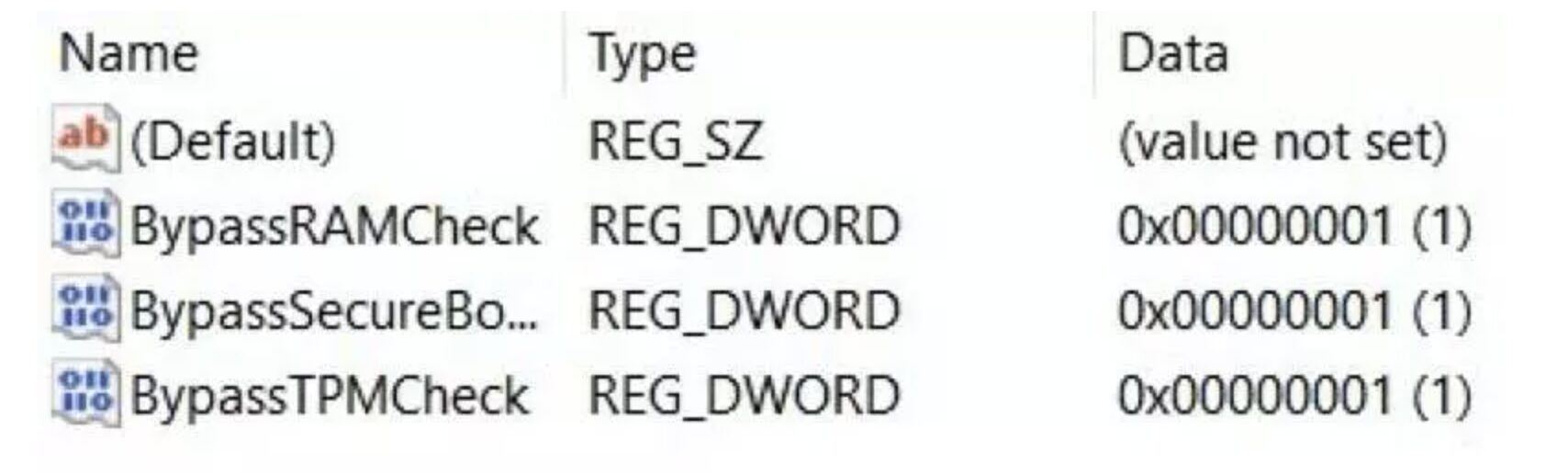
Cierra el Editor del registro y la consola de comandos. Vuelve al instalador y continua con la instalación. Si has seguido correctamente los pasos, no aparecerán errores de compatibilidad.
Advertencia: Saltarse los requisitos de seguridad puede aumentar la superficie de ataque y no garantiza recibir todas las actualizaciones. Utiliza este método bajo tu responsabilidad y sólo si comprendes las implicaciones.
3.2 – Crear un instalador personalizado con Rufus
La versión más reciente de Rufus permite eliminar los requisitos de Secure Boot, TPM 2.0, RAM y 64 GB de disco. Este método es ideal si quieres instalar Windows 11 en un PC antiguo sin recurrir al Editor del registro. Para usarlo:
Descarga Rufus desde su web oficial e inicia el programa.
Conecta una memoria USB de al menos 8 GB, haz clic en Seleccionar y elige la ISO de Windows 11.
En Opción de imagen elige Extended Windows 11 installation (no TPM/ no Secure Boot/ 8 GB‑RAM). Al pulsar Start aparecerá una ventana emergente que te permite quitar la obligación de Secure Boot y TPM 2.0, el requisito de 4 GB de RAM y desactivar la recopilación de datos. Marca las casillas necesarias y haz clic en OK.
Espera a que Rufus cree el USB. Después, arranca desde él y realiza la instalación normalmente. No será necesario crear manualmente claves del registro porque la ISO ya está modificada.
Método 4 – Instalar Windows 11 en VirtualBox o en máquinas virtuales
Otra consulta habitual es “cómo instalar Windows 11 en VirtualBox”. Windows 11 puede ejecutarse en máquinas virtuales, pero se aplican los mismos requisitos de CPU y TPM. Oracle VirtualBox y VMware Workstation ya incluyen soporte para TPM virtual. Para instalarlo:
- Descarga la ISO de Windows 11 y abre VirtualBox.
- Crea una nueva máquina virtual tipo Windows 11 (64‑bit), asigna al menos 4 GB de RAM y 64 GB de disco.
- En Configuración → Sistema → Placa base, habilita el chipset ICH9 y EFI si planeas usar Secure Boot; en TPM activa TPM 2.0.
- Monta la ISO en el apartado Almacenamiento y arranca la máquina virtual.
- Si VirtualBox no puede emular TPM en tu CPU, puedes usar el método del registro (LabConfig) descrito arriba para omitir las comprobaciones. Esta técnica funciona tanto en VirtualBox como en otras soluciones como VMware Workstation, Hyper‑V o Parallels Desktop en Mac.
Método 5 – Instalar Windows 11 en MacBook (Intel y Apple Silicon)
Para instalar Windows 11 en un MacBook Pro o en cualquier Mac moderno, existen dos escenarios según la arquitectura:
- Mac con procesador Intel: utiliza Boot Camp Assistant. Abre Launchpad → Otros → Asistente Boot Camp, selecciona la ISO de Windows 11 y sigue las instrucciones para crear una partición y reiniciar el Mac. Durante la instalación, introduce tu clave de Windows 11 Pro.
- Mac con procesador Apple Silicon (M1/M2/M3): Boot Camp no es compatible. Debes recurrir a soluciones de virtualización como Parallels Desktop, VMware Fusion o UTM. Estas herramientas permiten crear máquinas virtuales ARM y ejecutar Windows 11 ARM. El proceso es similar al descrito en el Método 4; al final deberás activar Windows con una licencia válida.
Método 6 – Instalar Windows 11 en equipos con FreeDOS o sin sistema operativo
Muchos portátiles económicos incluyen FreeDOS en lugar de Windows. La instalación de Windows 11 en estos equipos es idéntica a la instalación limpia descrita en el Método 2. Sólo necesitas:
- Crear un USB de arranque con la ISO de Windows 11.
- Arrancar desde el USB y eliminar todas las particiones existentes.
- Seguir los pasos de instalación y, al finalizar, instalar los controladores desde la web del fabricante (HP, Dell, MSI, Lenovo, etc.).
Preguntas frecuentes
¿Cómo instalar Windows 11 en un PC no compatible?
Tienes dos opciones: usar el truco del registro LabConfig (añadiendo las entradas BypassTPMCheck, BypassSecureBootCheck y BypassRAMCheck) o crear un USB personalizado con Rufus que elimine los requisitos de TPM, Secure Boot y memoria. Ambas técnicas permiten completar la instalación, pero Microsoft advierte que el dispositivo puede ser menos seguro y no recibir todas las actualizaciones
¿Se puede instalar Windows 11 gratis?
La ISO de Windows 11 se puede descargar sin coste desde Microsoft. Sin embargo, para activar Windows 11 Pro necesitas una licencia válida. Si compras tu licencia a través de MicroEspaña, podrás disfrutar de todas las funciones de Windows 11 Pro sin marcas de agua.
¿Qué procesadores son compatibles con la versión 24H2?
La actualización 24H2 requiere un procesador x86‑64‑v2 con soporte para SSE4.2 y POPCNT. Además, siguen vigentes los requisitos de tener 2 núcleos a 1 GHz y soporte para 64 bits. Los procesadores Intel Core de 8.ª generación en adelante y los AMD Ryzen de 2000 en adelante suelen ser compatibles.
¿Puedo volver a Windows 10 si no me convence Windows 11?
Sí. Tras actualizar, tienes diez días para volver a Windows 10 conservando tus archivos. Pasado ese periodo, deberás realizar una instalación limpia de Windows 10 utilizando una ISO y un USB de arranque.
¿Cómo instalar Windows 11 en VirtualBox?
Crea una máquina virtual de 64 bits con al menos 4 GB de RAM, monta la ISO e instala. Si la virtualización no ofrece TPM 2.0, utiliza el método LabConfig para omitir la comprobación de requisitos.
¿Por qué Windows 11 pide TPM 2.0 y Secure Boot?
TPM 2.0 (Trusted Platform Module) proporciona funciones de seguridad basadas en hardware y Secure Boot evita que se carguen sistemas y malware no autorizados durante el arranque. Estas medidas mejoran la integridad del sistema, pero pueden dejar fuera a equipos antiguos sin estos componentes. Al crear las entradas BypassTPMCheck y BypassSecureBootCheck indicas al instalador que ignore estas comprobaciones
Conclusión
Instalar Windows 11 Pro en 2025 es más fácil que nunca gracias a la actualización 24H2 y a las herramientas disponibles para crear medios de instalación personalizados. Ya sea que tu equipo cumpla todos los requisitos o necesites omitir algunos, ahora dispones de una guía completa en español para instalar Windows 11 en cualquier ordenador: PC nuevo, portátil con Windows 10, MacBook, máquina virtual o incluso equipos sin TPM. Recuerda que las funciones avanzadas de Windows 11 —HDR, Wi‑Fi 7, búsqueda semántica y Windows Recall— ofrecen una experiencia más moderna y productiva
Si necesitas una licencia original de Windows 11 Pro, visita la tienda de MicroEspaña para obtener una clave válida y soporte profesional. ¡Que disfrutes de tu nuevo sistema operativo!